
Adding a sales rep sounds like a simple settings task. It isn't, quite. The process varies by platform, and the decisions you make around user roles, access permissions, and customer record defaults directly affect reporting accuracy and data security.
This guide covers what you need before you start, step-by-step instructions for QuickBooks, inFlow, and Cin7 Core, how to configure access rights, common setup mistakes, and how to use the resulting data for performance tracking and commissions.
TL;DR
- Sales reps must already exist in the system as an employee, vendor, or team member before being designated
- QuickBooks uses Lists > Customer & Vendor Profile Lists > Sales Rep List; inFlow uses a toggle in Team Settings; Cin7 Core assigns reps directly during an active POS sale
- Access rights should be configured right after adding reps — otherwise all reps can see each other's orders and customers
- Most platforms unlock built-in sales rep reports automatically once reps are properly assigned
- Getting the right reps into the system matters as much as the configuration itself
What You Need Before Adding a Sales Rep
Skipping prerequisites is the fastest way to create configuration problems. Each platform has specific requirements that must be met before the sales rep toggle or assignment option becomes available.
User Role and Access Requirements
| Platform | What the rep must be first |
|---|---|
| QuickBooks Desktop | An employee or vendor already in the system |
| inFlow | A team member with sales order access rights enabled |
| Cin7 Core POS | A user assigned to the specific POS outlet |
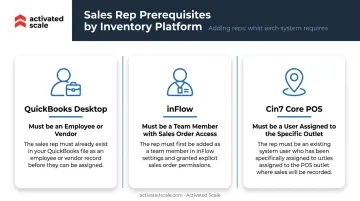
In inFlow, this is explicit: a team member without sales order access won't appear in the Sales Reps tab at all. The toggle simply won't be available. Create the user first, assign the right access level, then proceed to rep designation.
QuickBooks handles this differently. If someone isn't yet in the system when you go to add them as a rep, you'll be prompted with either Quick Add (name only) or Set Up (full profile). Always choose Set Up: a name-only record will cause problems with reporting and form assignments later.
Platform Plan Considerations
Some rep management features are gated by plan tier. In inFlow, the ability to restrict a rep's view to only their own customers and orders requires an advanced plan. Location-based access restrictions — limiting reps to inventory and orders tied to their specific branch — are available on the Plus plan and above.
Before starting setup, confirm your current plan supports the level of rep management your business needs.
How to Add a Sales Rep in Popular Inventory Platforms
The process is consistent across platforms — designate a user as a rep and assign them to orders. Navigation paths and available options vary by tool. Here's exactly how it works in each.
QuickBooks Desktop (Mac and Windows)
Navigate to Lists > Customer & Vendor Profile Lists > Sales Rep List, then click the "+" icon to open the New Sales Rep window. Select the employee or vendor from the Sales Rep Name dropdown and click OK.
If the person doesn't exist yet, QuickBooks will prompt Quick Add or Set Up — choose Set Up to create the complete profile.
Editing and deactivating reps:
- To edit an existing rep: double-click their name in the Sales Rep List and update as needed
- To deactivate without deleting: check the "Inactive" checkbox — the rep stops appearing on active forms but remains in historical records
- To delete a rep: only possible if they haven't been used in any transactions; if they have, inactive status is your only option
Note: The Windows navigation path above comes from QuickBooks Community guidance. The current official Intuit Help documentation verified during research is Mac-specific — the path is consistent, but Windows users should verify against their version if navigation differs.
inFlow Inventory (Web App)
Go to Main Menu > Settings > Team, then select the "Sales Reps" tab. Toggle on the team member you want to designate as a sales rep and click Save.
Once enabled, inFlow automatically assigns that person as the rep on any new order or customer they create. For existing orders and customers, the rep must be manually selected.
Two places to set rep assignment:
- On the order record: use the Sales Rep dropdown field
- On the customer record: use the "Default Sales Rep" field under Preferences — this ensures new orders created for that customer auto-populate the correct rep
Without the Default Sales Rep field set on each customer record, orders won't carry the right attribution — and your Sales Representative Report will have gaps.
Cin7 Core (POS)
During an active POS sale, click Add > Sales Rep to open a rep selection panel. Choose the appropriate sales rep from the list of users assigned to that POS outlet.
Optionally, check "Hide users assigned to all locations" to narrow the displayed list to reps tied specifically to the current outlet — useful if you run multiple locations and want to keep the selection clean.
A few things to know before assigning reps at the POS level:
- Reporting: Rep assignments feed directly into POS reports, enabling per-rep revenue tracking across outlet locations
- Prerequisite: The rep must already exist as a user assigned to that outlet to appear in the selection panel
Managing Sales Rep Access Rights and Permissions
Get access rights wrong and you end up with one of two problems: too permissive, and reps can browse each other's customer lists and order histories; too restrictive, and they can't do their jobs.
This balance matters most for businesses with multiple reps managing separate territories or working in commission-driven environments.
Restricting Reps to Their Own Data (inFlow)
After enabling a team member as a sales rep, navigate to Settings > Team > Sales Reps tab > Manage Sales Reps and check the "Restricted" box next to their name.
Restricted reps in inFlow cannot access:
- Orders and customers where they are not the assigned sales rep
- The Dashboard (Windows app)
- Product cost history
- Product movement history
- The sales rep field (they cannot reassign orders to other reps)
In commission-sensitive environments, unrestricted access means a rep can view a colleague's entire book of business: customer list, order history, and pipeline. Restricted mode cuts off that exposure entirely.
Location-Based Restrictions
Higher-tier inFlow plans also support restricting reps by physical location. A rep assigned to one warehouse or branch cannot view inventory movements or orders tied to a different location. This matters for multi-location businesses with territory-based sales structures where data crossover would create attribution confusion.
QuickBooks Access Considerations
QuickBooks Desktop does not offer the same granular rep-level data restrictions as inFlow. Sales rep designation in QuickBooks is primarily a reporting and attribution tool: it tracks who sold what, but it does not limit what individual reps can see within the system. If tighter permission controls are a priority, inFlow or a comparable inventory platform with role-based access will better serve that need.
Common Mistakes When Setting Up Sales Reps
These errors come up often — and each one quietly corrupts your reporting:
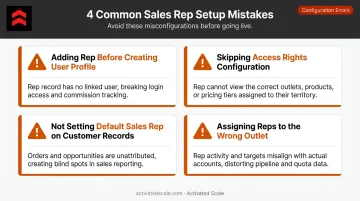
- Adding a rep before creating their user profile — most platforms will error out or trigger a Quick Add flow that leaves the record incomplete. Always build the full user profile first.
- Skipping access rights configuration — unrestricted access lets reps view each other's customer lists and order histories, creating security gaps and friction in commission-driven teams.
- Not setting a Default Sales Rep on customer records — order-level-only assignments mean new orders won't auto-populate the right rep, creating gaps in inFlow's Sales Representative Report that are tedious to fix after the fact.
- Assigning reps to the wrong outlet in Cin7 Core — a rep who isn't assigned to a specific POS outlet simply won't appear in the selection panel during a sale. Check outlet assignments before going live.
How to Track Sales Rep Performance Using Inventory Reports
Adding reps correctly is the prerequisite. The payoff comes from the reports.
Running Sales by Rep Reports
QuickBooks Desktop: Go to Reports > Sales and choose:
- Sales by Rep Summary — high-level revenue view by rep
- Sales by Rep Detail — transaction-level breakdown
inFlow: Use the Sales Representative Report (accessible via Settings > Reports). This report shows sales orders for which each rep was responsible. Note: the "Team Member Tracking Report" in inFlow tracks system changes made by team members — it's not a sales volume report, despite the similar name.
Cin7 Core: POS reports can show how much each sales rep sold. The Sales Summary report currently supports a User filter; a dedicated Sales Representative filter is listed as planned but not yet available. For commission detail, a separate Profit by Sales Representatives Report is available — covering amount invoiced, COGS, profit, gross margin, and commission amounts.
The quality of all these reports depends entirely on consistent rep assignment at the order level. One missed assignment per day adds up quickly.
Using Rep Data for Commission Calculations
Most inventory platforms track sales volume by rep but don't calculate commissions automatically. QuickBooks and inFlow both fall into this category — they generate the data, and you export it to a spreadsheet or commission software for actual payout calculations.
Cin7 Core is the exception: it natively supports commission setup, lets you specify a commission percentage per rep, and calculates total commission amounts directly within the platform.
For platforms that don't calculate commissions natively, a monthly reporting cadence works well — pull the Sales by Rep report, export to Excel, and process payouts from there. That monthly pull also doubles as a natural checkpoint to spot underperformers before issues compound.
Accurate reports start with accurate rep assignments — and that requires the right people in those roles. For B2B founders still building their sales team, Activated Scale connects companies with vetted fractional sales reps (SDRs, AEs, and sales directors) in 7 days or less.
Frequently Asked Questions
How much does it cost to hire a salesperson?
According to the BLS, the median annual wage for wholesale and manufacturing sales reps was $66,780 in May 2024. With benefits (~37% on top of wages) and average cost-per-hire of $5,475, a full-time SDR typically runs $60,000–$100,000 annually all-in. Fractional models like Activated Scale offer an alternative at $2,800–$4,500/month plus commission, with no benefits overhead or recruiter fees.
Can I add an external contractor or vendor as a sales rep in my inventory platform?
In QuickBooks Desktop, yes — vendors can be added to the Sales Rep List alongside employees. In inFlow, external contractors must first be set up as team members with a platform login and sales order access rights; pure external contractors without a user account cannot be toggled on as reps.
What happens to existing orders if I remove or deactivate a sales rep?
In QuickBooks, a rep who has been used in transactions cannot be deleted — they can only be marked as Inactive. Inactive reps stop appearing on new order dropdowns but remain attached to historical records. This protects reporting continuity for past periods.
How do I restrict a sales rep from seeing other reps' orders and customers?
In inFlow, go to Settings > Team > Sales Reps tab > Manage Sales Reps and check the "Restricted" box next to the rep's name. This feature requires an advanced inFlow plan. QuickBooks Desktop does not offer rep-level data restriction natively — its sales rep feature is designed for reporting, not access control.
Can I track sales commissions directly inside my inventory software?
Cin7 Core does natively calculate commissions — you can set a commission percentage per rep and the platform computes total payout amounts automatically. QuickBooks and inFlow do not calculate commissions natively; both provide sales-by-rep volume data through reports, which you then export to a spreadsheet or dedicated commission tool for actual calculations.
Why isn't a team member showing up in the sales rep dropdown in inFlow?
The team member must have sales order access rights enabled before they can be toggled on as a sales rep. If they don't appear in the Sales Reps tab, check their access rights configuration under Team settings and confirm "Sales Orders" access is turned on.